
Tools mentioned in this article
Open the browser-based tool while you read and try the workflow immediately.
CSV and JSON solve different problems
CSV is simple, tabular, and easy to open in spreadsheet tools.
JSON is better for structured data such as API responses, configuration, arrays, and nested objects.
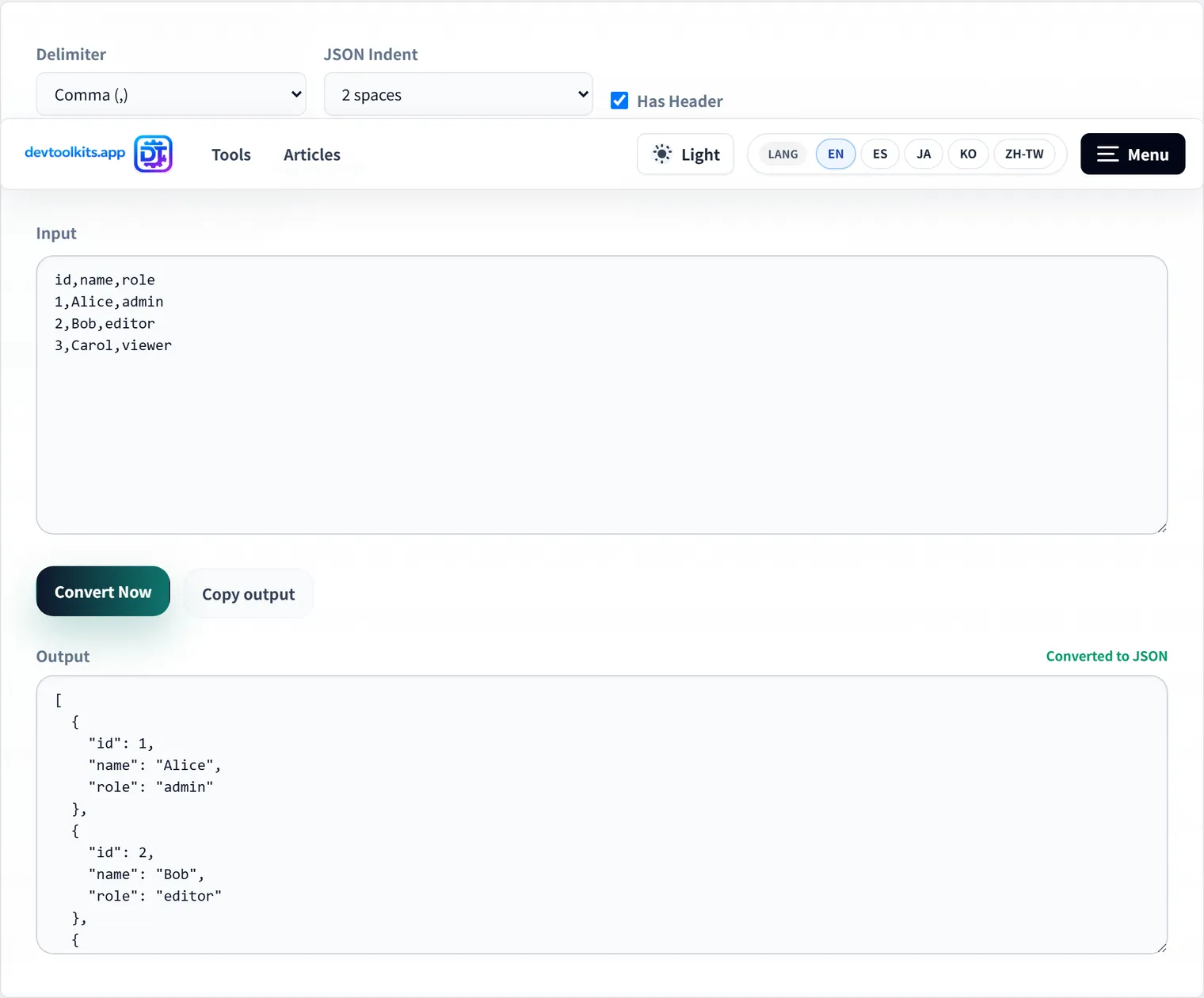
Being able to convert between them helps with handoffs between teams, bulk imports, admin tools, API testing, and data cleanup.
Converting CSV to JSON
Use the header row as keys
Most CSV files start with headers like name,email,role.
When converting to JSON, those headers usually become object keys.
[
  { "name": "Alice", "email": "alice@example.com", "role": "admin" }
]
Check the delimiter
Not every CSV-like file is comma-separated.
Some exports use tabs or semicolons, especially when data comes from spreadsheets or regional settings.
If the columns do not split correctly, the delimiter is the first thing to check.
Be careful with value types
CSV values often arrive as plain text.
After converting to JSON, confirm whether values such as IDs, postal codes, and phone numbers should remain strings even when they look numeric.
Converting JSON to CSV
JSON converts cleanly to CSV when it is an array of objects with similar keys.
Nested objects and arrays need an extra decision: flatten them into keys such as profile.name, serialize them into a cell, or omit fields that are not useful in a table.
For spreadsheets and imports, a small, predictable set of columns is usually easier to maintain than a perfect copy of the whole JSON structure.
Use DevToolKits for conversion
The CSV ⇔ JSON converter supports both directions and lets you choose delimiters and header handling.
After conversion, use the JSON formatter to inspect the output, or the JSON ⇔ YAML converter when the data needs to become configuration.
Frequently Asked Questions
CSV numbers turn into numeric values in JSON—how do I keep them as strings?
Values like postal codes, IDs, and phone numbers that “look numeric but should be strings” can lose leading zeros or overflow if converted to numbers. Use a “treat as string” option during conversion if available, or check and fix the type of those fields after converting.
Can I convert nested JSON to CSV?
CSV is a flat, tabular format, so nested objects and arrays don’t fit in a single cell as-is. Flatten keys like profile.name, or narrow down to just the fields you need before converting to CSV.
My columns are misaligned even though it’s comma-separated.
If a value contains a comma or newline, columns will shift unless it’s properly escaped with surrounding quotes ("..."). Also, a file called “CSV” may actually be tab- or semicolon-separated. Check the delimiter and quoting settings.